
ServiceNow: IT Service Management—Incident Management
Incident Management
Incident:
An incident is an unplanned interruption to the IT service, a reduction in the quality of IT service, or a failure of a Configuration Item (CI) that has not yet impacted the IT service.
- CI = Configuration Item
Incident Management:
Incident management is the process responsible for managing the life cycle of all incidents.
The purpose is to restore normal service operations as quickly as possible and minimize the impact on business operations, ensuring the agreed level of service quality is maintained.
Tables in ServiceNow:
- Incident table name: Incident
- The incident table extends from the task table
- Incident task table name: incident_task
- incident_task is also extended from the task table
Incident Management: Personas

- Caller: Submits incident requests.
- Service Desk Agent: Level one support and primary point of contact with end users.
- IT Support Teams: Second- and third-level support and subject matter experts in one or more technologies.
- Incident Admin: Configures specific elements of the process within ServiceNow.
- Process Owner: Manages the day-to-day process activities.
Incident Life cycle:
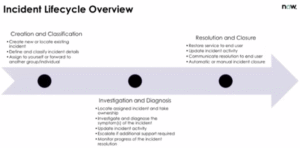
First phase: Creation and Classification (CC).
Second phase: Investigation and Diagnosis (ID).
Third phase: Resolution and Closure (RC).

Incident Examples:
- User unable to log in to email account.
- Laptop not turning on.
- The internet connection is down.
- The application is crashing frequently.
- The printer is not responding to print commands.
- Unable to access shared network drive.
Incident management process:
- Log incident—a ticket is created and basic information is recorded
- Categorize – Incident is categorized
- Prioritize – Incident is prioritized
- Diagnosis—Troubleshooting is done to get as much information as possible
- Resolve—when solution/workaround exist, inform user and resolve the incident.
- Reopen—when the provided solution does not solve the issue.
- Close—If the caller is satisfied with the resolution provided, the incident will be closed.
Incident management process:
Creating and Classifying the incident
- Creation of a new incident or locating the existing incident.
- Define and classify the incident details.
- Assign the incident to yourself or to others
Navigate to Create new under incident application
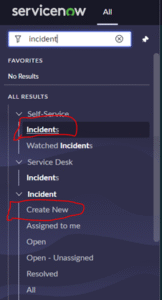
This opens the new incident form.
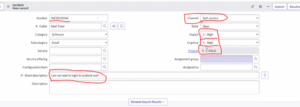
Fill in the details and click on the submit button. A new incident record will be created.
To view the incident records,
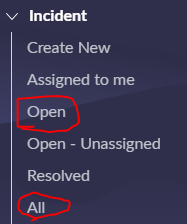
Navigate to the All module under the Incident application. (This list contains active and inactive incidents).
To see active incidents, navigate to the Open module under the Incident application.
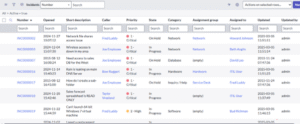
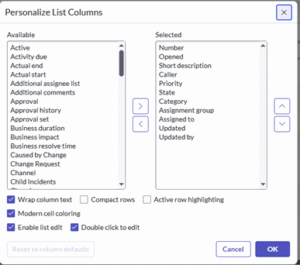
We can personalize the list. i.e., we can customize the fields on the list and their order.
Note:
Fields under the selected bucket will be available on the list.
This personalization is user-specific and does not affect all users in the organization.
Prioritization and categorization of incident:
The service desk agent will categorize and prioritize the incident based on the information given by the caller.
The agent will prioritize the incident based on the following priority definitions.
The following matrix will show how priority will be defined:
The incident will be assigned to the appropriate support group based on the issue.
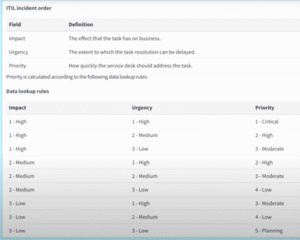
ITIL suggests that priority be made dependent on impact and urgency, where:
- Impact is the effect that an incident has on business.
- Urgency is the extent to which the incident’s resolution can bear delay.
- Priority is generated from urgency and impact according to the following table.
A technical expert (fulfiller) from the assignment group will be assigned to the incident.
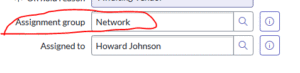
Here, Network is the assignment group, and Howard is the fulfiller.
Investigation and diagnosis
Here the fulfiller will start working on the incident.
The fulfiller finds the incident assigned to him/her by navigating to Assigned to under the incident application.
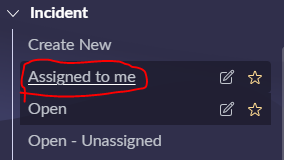
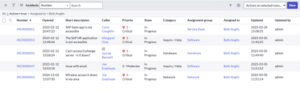
The fulfiller starts the diagnosis for the incident. if the fulfiller needs more information for the incident.
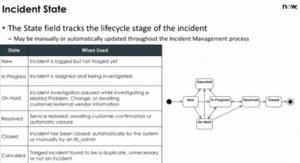
Change the state to on hold and awaiting caller as the on-hold reason.
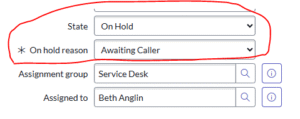
After getting additional information from the caller, the fulfiller will again start working on the issue.
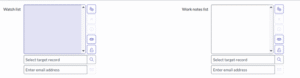
We can assign other users to the watchlist who want to follow the progress of the incident.
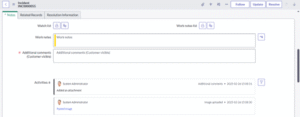
The fulfiller will provide a resolution to the caller after diagnosis.
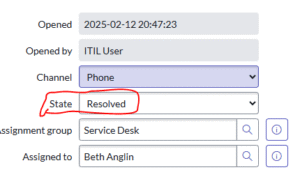
After providing the solution to the caller. The fulfiller will change the state of the incident to resolved.
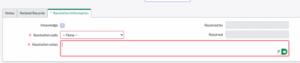
While changing the state to resolved. The fulfiller must provide the resolution notes and resolution code under resolution information.
Reopen the incident:
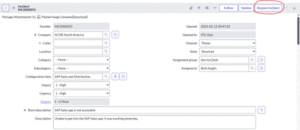
If the caller is not satisfied with the resolution provided or the issue still exists, the incident will be reopened using the reopen incident button. The state automatically changed to in progress.
Closing of incident:
If the caller is satisfied with the resolution, the incident will be closed. state will be changed to Closed.
Or the incident will be auto-closed after 7 days of resolution.
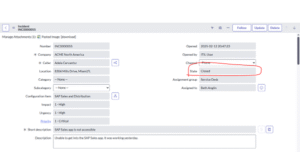
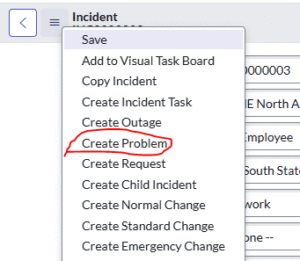
If the incident requires it, a problem request will be created from the incident.
Open the incident record > click on the form context menu / right-click on the form header >
Click on Create problem.
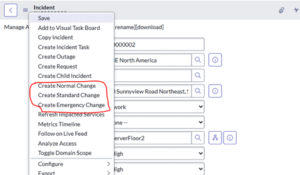
If the incident requires a change request, it will be created from the incident.
Open the incident record > click on the form context menu / right-click on the form header >
Click on Create Normal change / Create Emergency Change.
In how many ways can we create an incident?
We can create incident in 5 ways…

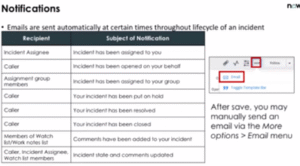
ServiceNow, the company, stopped the email notification service for personal development Instace.
How to create an incident from the service portal?
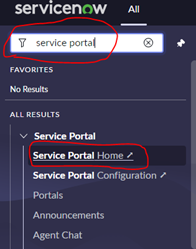
Go to All -> search Service portal -> select portal Home.
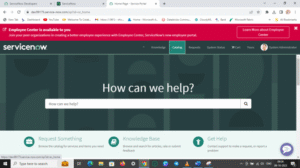
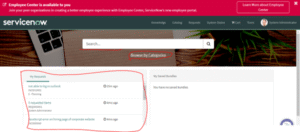
Click on browse by category
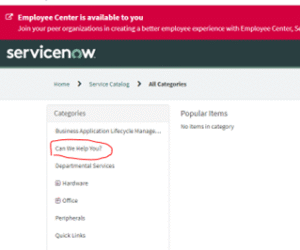
And from the resultant page, click on Can we help?
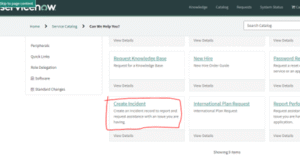
And on the next page, click on theCreate Incident.
It contains only two fields.
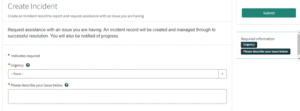
Mostly end users create incident from the service portal
Mention the issue and click on the submit button. To submit an issue.
Because end users don’t know anything about ServiceNow. That is why we have only two columns.
The new incident will get created, and we will get assigned the incident number. so we can check them in the incident list.
After incident getting created, it will go to the service desk
Now, service desk people classify incidents.
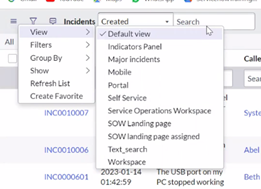
In the company we will be having different roles based upon their roles, the incident form will appear.
Incident.list—will open the incident table directly.
Incident.LIST—will open the incident table in the next tab.
How to check the incidents assigned to us?
Search assigned to me on the navigator,
If we click on the assigned to me in the incident section , we will get the details of tickets , which got assigned to us.
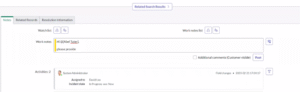
If the incident assigned person want any information from the user. he will go to related search result, and in the Notes section, he will sent message to the end user through the work notes, and click on Post.
If the end user not responded to the message sent by the incident manager, the incident manager will keep the ticket on hold in the state section in the form.
And mentions the reason for the holding reason, and he will update the matter to the team, mentioning the details of the incident to the team in the note section , at additional comments. And save (don’t submit).
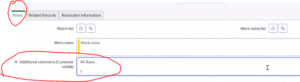
Until the end user replies, the ticket will be on hold.
Sys_user_has_role.LIST—contains the information regarding the user roles.
Impersonate user – name
Create incident – new
(time sheet application log in)
If multiple incidents are created with the same issue, what do we have to do?
There we need to create a parent-child relation between the incidents so that all these incidents will get resolved when the parent issue is resolved.
With the same issue, multiple tickets were raised?
So here we need to create a parent-child incident.
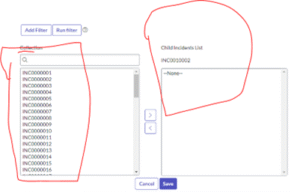
Open one incident (to be the parent incident), and at the relative list in the child incident, click on the edit option and add the other incident as a child incident.
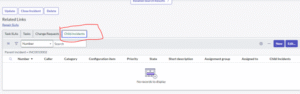
Click on the edit option.
From the collection, we have to select the incidents A and add them to the child incident list.
How to copy an incident?
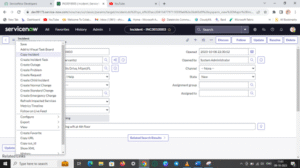
After saving the incident, if want to create another incident with the same issue. we can copy the issue
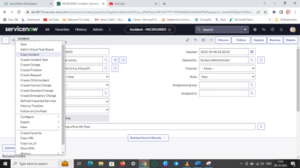
Incident task:
Create an incident task to communicate with and request work from assignment groups other than the one that is mentioned for the incident.
Where one user’s laptop got broken, so he raised a ticket to replace the laptop.
We need the software to be get from the broken laptop, so we need to create a ticket.
We need to assign the same task to two people we need to have incident tasks.
In the related field, incident task.

By clicking on new, we can create a software-installed incident, and we can assign that to another person.
Same ticket for two persons.
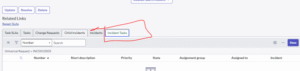
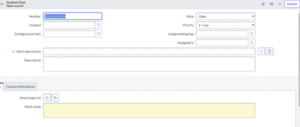
Incident task – universal – to be selected from the related list configuration, to created incident task to the related task – so with that, we can assign same ticket to different persons.
To open servicenow PDI : ServiceNow
https://developer.servicenow.com/dev.do